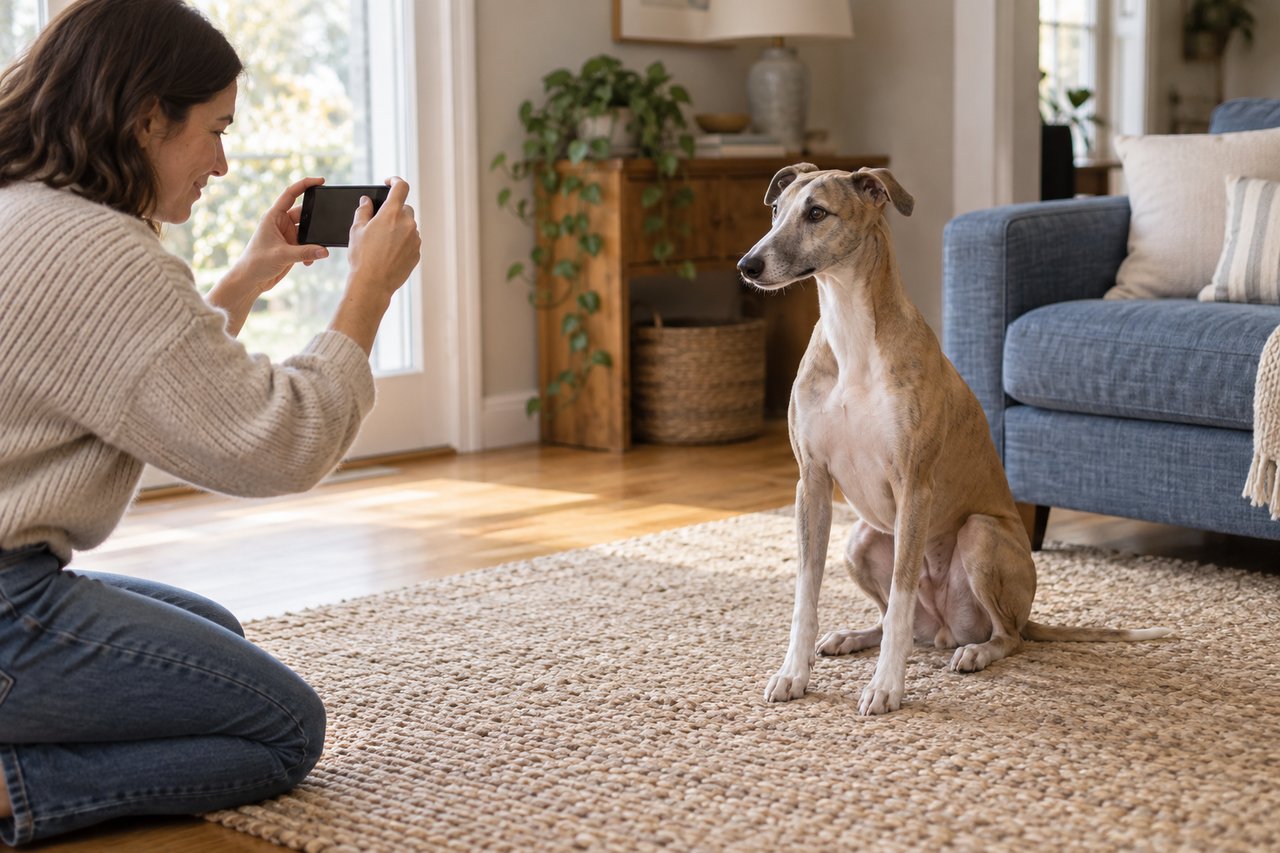
A pet portrait from a video can start with a saved still, provided that frame shows your pet's face and familiar markings clearly. Save the frame from the original clip where possible, then inspect the saved image before choosing it as your portrait reference.
Sometimes the look you love only lasts a second. The ears lift when someone comes home. The cat looks up from the sofa. You have the moment on video, but no photograph quite like it. Here is how to find out whether that moment can become a useful starting image.
Can you make a pet portrait from a video?
The practical route is to turn one moment into a still image first. A video file and a photo upload are different things. For the usual Yours, Theo portrait journey, begin with a clear photo rather than assuming you can upload the whole clip.
The still does not need a beautiful background. It does need enough visible information to recognize your particular pet. A clear face in an untidy kitchen is more useful than an indistinct face in a lovely garden.
If you already have a good photograph with the expression you want, use it. This guide is for the occasions when the clip holds something your photo collection does not. Our photo selection guide covers the broader choice.
Which moment makes the strongest portrait reference?
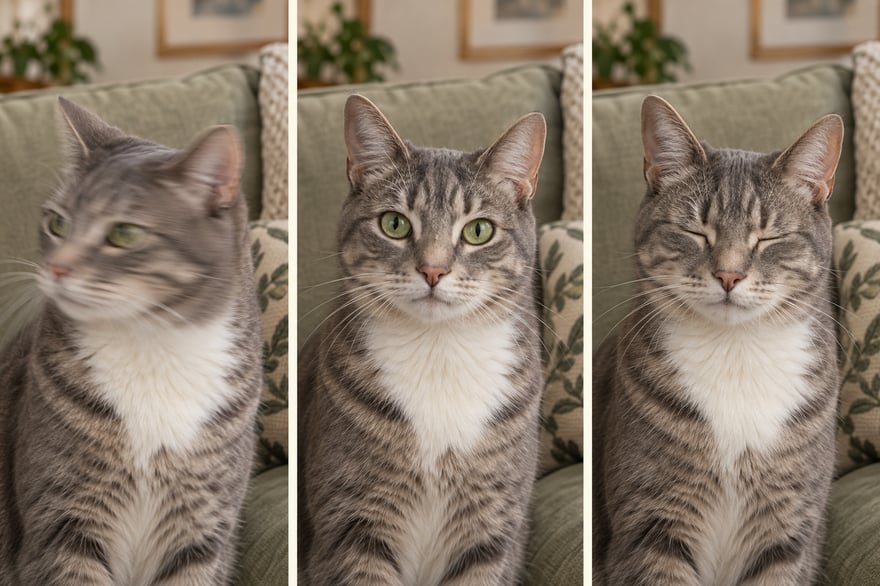
Pause the video around the moment you like and compare a few nearby positions. A small shift can take you from a head turn to a still, readable face.
Look for four things:
- An expression you recognize. Choose the ordinary look you love, rather than an accidental half-blink.
- Clear facial edges. Check the eyes, nose and muzzle for smearing or double outlines.
- Visible identifying details. Keep the ears, blaze, eyebrow patches or other important markings in view.
- Enough face in the image. A pet far away in a large scene may leave very little detail once you crop closer.
Open each saved candidate at a comparable viewing size. Do not judge one as a tiny thumbnail and another enlarged to fill the screen. If the favorite expression is soft, keep it as an expression reference and choose a sharper image to explain the face.
How do you save a photo from the clip?
Find the original recording in your photo library before working from a version forwarded through a messaging app or downloaded from social media. Keep that original unchanged.
On an iPhone with the current save-frame option: open the video in Photos, play it, and pause at the moment you want. Open the More menu and choose Save Video Frame as Photo. Apple documents this in its iOS 27 guide. The saved image appears in your photo library. If your phone does not show that option, use a supported export method on another device.
In Google Photos on Android: open the video, find the video editing controls and position it at the frame you want. Use Export frame to save the still. Controls can vary, so refer to Google's current video editing instructions if the option is not where you expect it.
In Photos on a Mac: open the clip and move the playhead to the chosen frame. Choose File > Export > Export Frame to Pictures. Apple's Mac instructions explain that this creates a TIFF in the Pictures folder. Keep it, and make a JPEG or PNG copy if your upload requires one of those formats.
After exporting, open the actual saved file. Check the expression, crop and color again before sending it.
Is a screenshot good enough?
It may be useful, especially if it is all you have. But a screenshot records the displayed image, so screen scaling, black borders or playback controls can leave less useful space for your pet's face. A direct frame export avoids those particular distractions.
If you must use a screenshot, pause the clip, hide the controls and keep as much of the video visible as possible. Save the untouched screenshot before making a cropped copy. Do not crop through ear tips or a marking you want preserved.
Neither method fixes blur already present in the recording. Exporting a moving face more cleanly does not make that face sharp. Try a nearby moment before reaching for an enhancement tool.
What should you save and send to the studio?
Keep the original clip, your strongest exported still and any clearer photograph that explains a missing detail. You do not need to send a whole folder of nearly identical frames.
Start with the best still in the photo upload. If you need the artist to see additional references, ask the studio how to share them and explain each one's purpose. A short note might say:
The saved video frame shows the expression I love. The separate photo shows the white patch under her chin more clearly. Please keep that patch and tell me if you need a better reference.
Avoid presenting a heavily sharpened or reconstructed face as the original. Keep any edited version separate. If an eye or marking is unclear, a real supporting photograph is more useful than guessing what belongs there.
Common questions
Does the saved frame need to match the final portrait shape?
No need to force a tight crop before starting. Keep useful facial and body detail available, then assess how your pet fits the chosen scene.
What if the clip is my only memory of that expression?
Keep it. Ask the studio to assess the best still before assuming it will or will not work. Be clear about which details are visible and which are uncertain.
Will the finished portrait copy the video's background?
Your selected theme supplies the direction for the initial preview. Yours, Theo uses AI-assisted tools for that first preview; a real artist refines every printed portrait with you before approval. The portrait buying guide explains that process. Use our preview review guide when checking the familiar details.
Ready to start
Save the moment, check the face, then start your portrait. The best reference is the one that helps us see the pet you know.